Monday, March 6, 2017
Make a Bootable ISO from OS CD DVD in a few minutes with a free software
Make a Bootable ISO from OS CD DVD in a few minutes with a free software
How to make a bootable iso from OS CD/DVD (Works for Windows 10, 8.1, 8, 7, XP & other linux too)
For making bootable iso from OS CD/DVD you need the following things:
- A valid windows CD/DVD media (e.g- windows xp, 7, 8, 8.1, 10, ubuntu 14). Remember - if the installation media is corrupted, then we cannot make the bootable iso.
- An application called Windows Bootable Iso Creator. Download WBICreator.
Now watch the following tutorial.
Open the WBICreator application
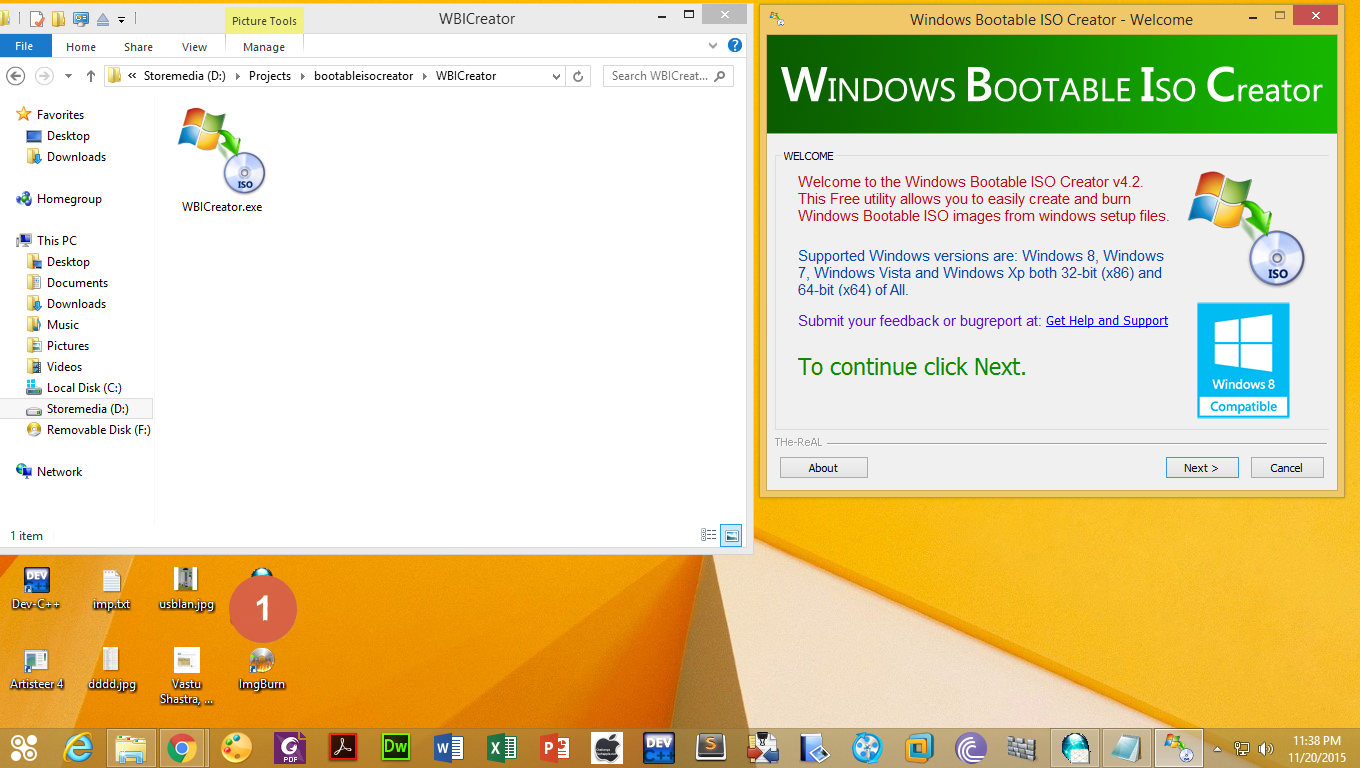
Then follow the instruction of the following images. Now click Go for creating iso. Wait until 100% Complete.
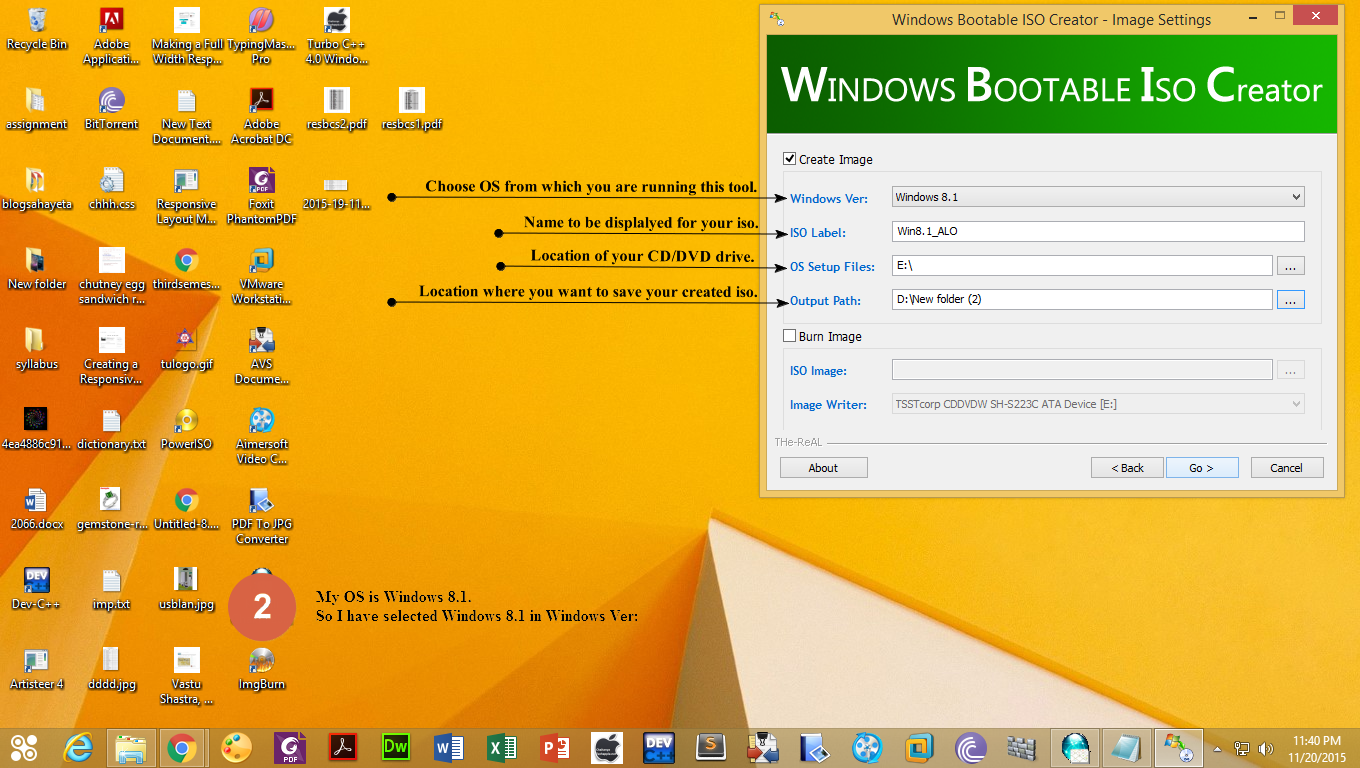
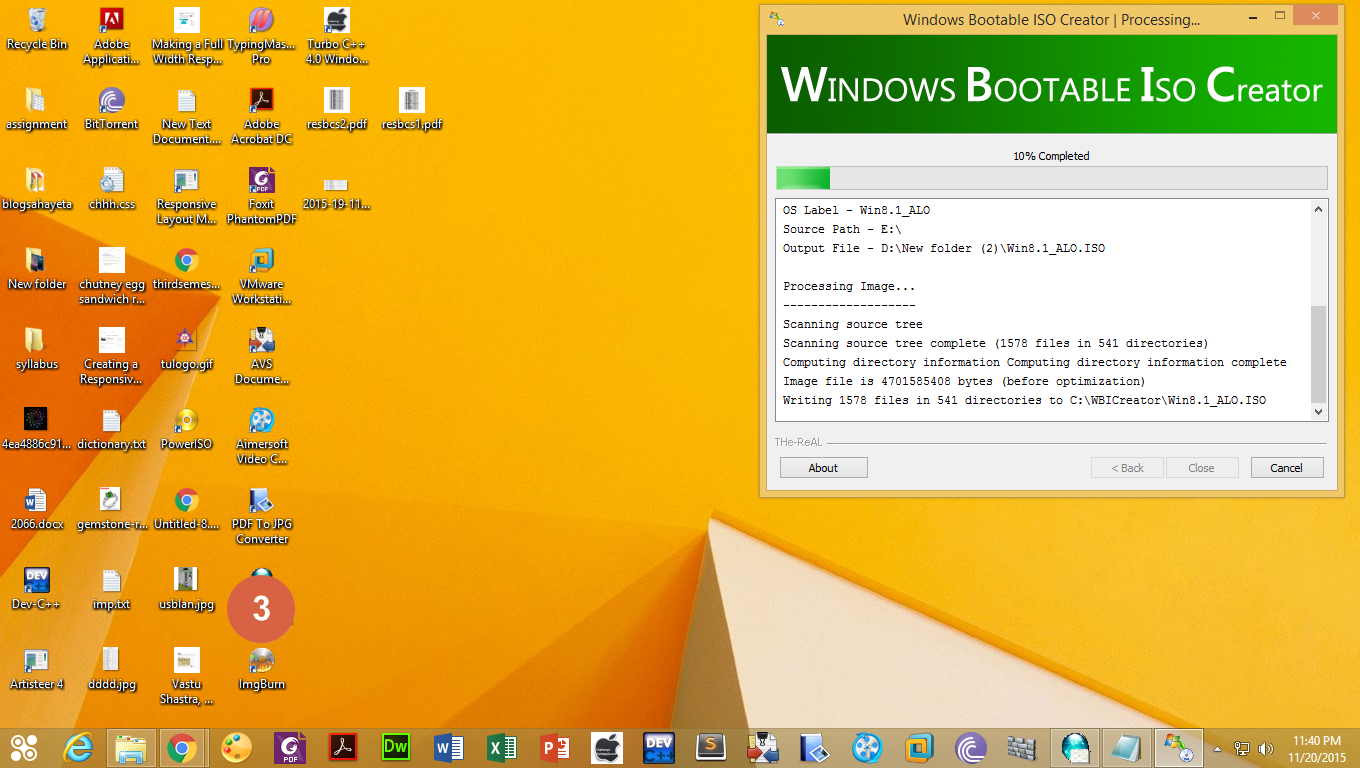
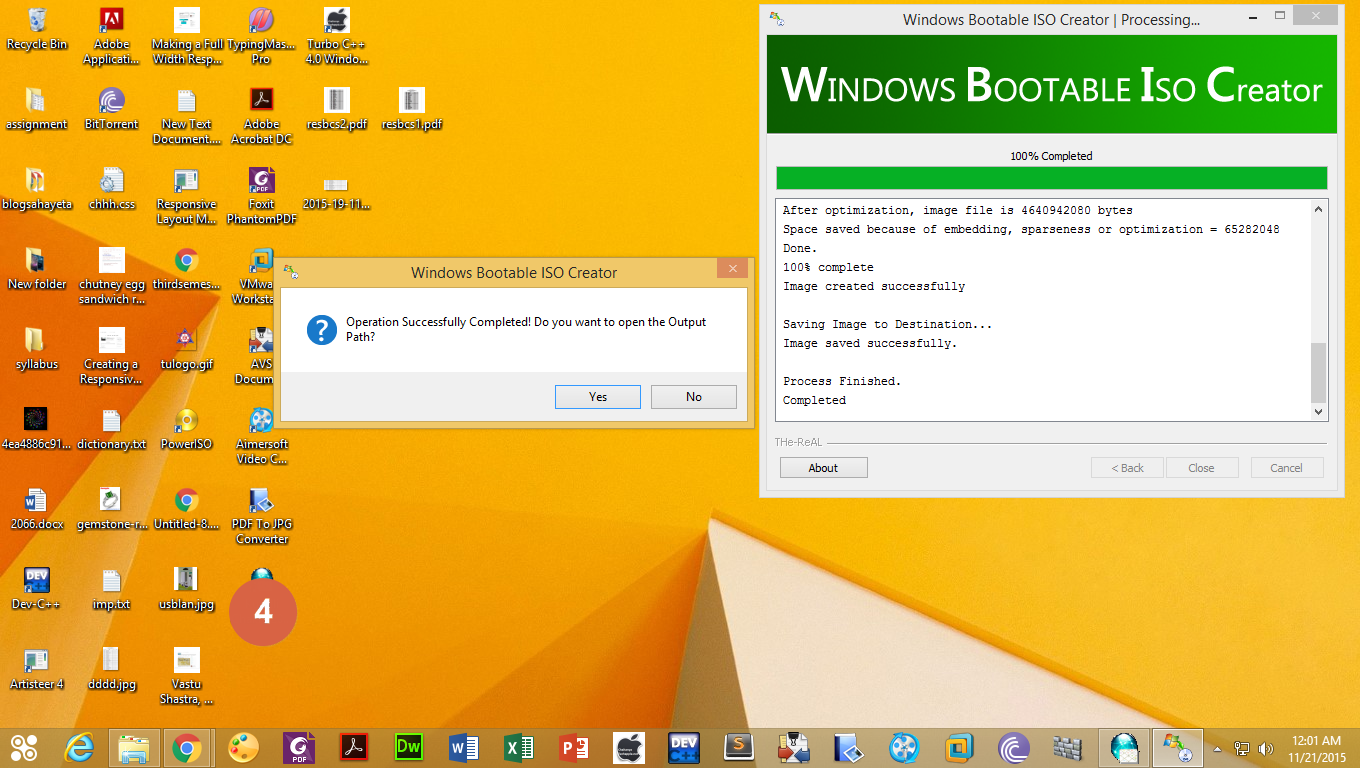
Then the dialog box appears. Just click the Yes button. Now you get your iso.
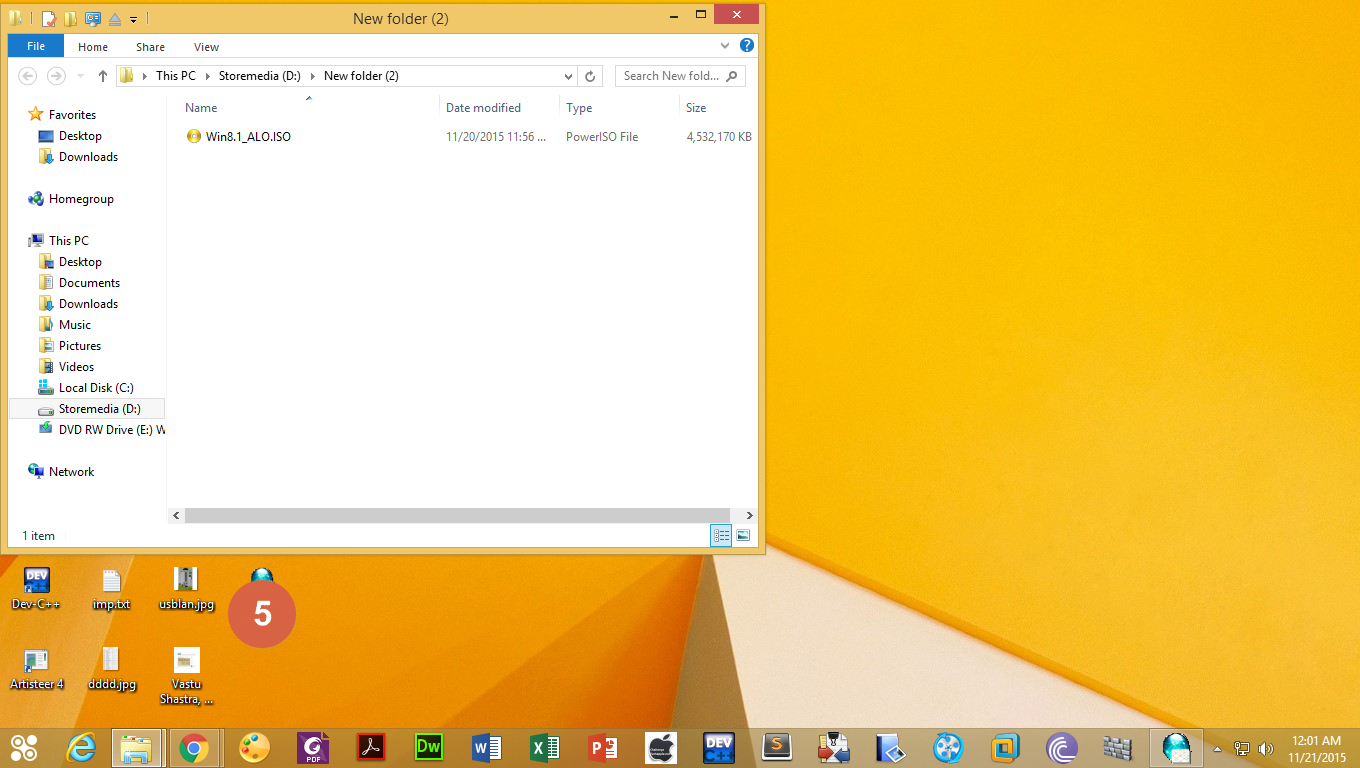
I am choosing WBICreator application for making bootable ISO because it is very simple to use, free, lighter and faster than any others. But you can choose your own favourite application. Currently this application has no any updates.
Thanks for visiting
Available link for download
.png)

Friday, February 24, 2017
MENJALANKAN HD CLONE DARI FLAHDISK USB Bootable
MENJALANKAN HD CLONE DARI FLAHDISK USB Bootable


Download : HD Clone (versi instaler)
Download : HD Clone (versi portable)
Available link for download
Monday, December 5, 2016
Make a Bootable USB in a few minutes
Make a Bootable USB in a few minutes
How to make a bootable USB/ Pen drive from any iso files
For making bootable USB you need the following things
- An uncorrupted iso files(e.g- windows xp, 7, 8, ubuntu 14). Remember - if the iso file is corrupted, then we cannot make the bootable USB/ Pen drive
- An application that create bootable USB. Download Rufus
- An USB that has sufficient memory. 8Gb is better for making bootable USB.
I am choosing rufus application for making bootable USB because rufus is very simple to use and faster than any others. But you can choose your own favourite application.
To download Rufus latest version click the following link which is its official link. Its size is just about 616KB.
http://rufus.akeo.ie
Now watch the following tutorial.
Open the rufus application

Then choose create a bootable disk using iso image and click the DVD-drive icon to select the required iso image which you want to burn. I am making bootable USB of Hirens Boot Cd.


Now just click start button.

Then the warning message appears. Just click the Ok button and the burning process starts. Wait until DONE message appears at the bottom of application


Just open the My computer and visit your USB. Dont worry if the bootable icon is not shown beacause it is almost done. If the icon is not shown in your USB just eject it and again insert your USB then You Have Your Bootable USB.


Thanks for visiting
Available link for download
Sunday, November 6, 2016
Make USB Bootable Windows XP Using Rufus
Make USB Bootable Windows XP Using Rufus

- you need to create USB installation media from bootable ISOs (Windows, Linux, UEFI, etc.)
- you need to work on a system that doesnt have an OS installed
- you need to flash a BIOS or other firmware from DOS
- you want to run a low-level utility
A non exhaustive list of Rufus supported ISOs is also provided at the bottom of this page.

- Plug in your USB Flash drive
- to make a Windows bootdisk (Windows XP/7) select NTFS as file system
- then click on the buttons that looks like a DVD drive, that one near to the checkbox that says "Create bootable disk usng:"
- Choose the XP ISO
- Click Start
Enjoy
Available link for download
Monday, October 31, 2016
Make a bootable Linux in the Flashdisk
Make a bootable Linux in the Flashdisk

Make a bootable Linux Live CD Ubuntu 7.10 in the Flashdisk through the windows was not as hard as we imagine, the steps - steps are as follows:
- Download the file first syslinux here
- Create a directory on the C syslinux:
- Then extract the files we had downloaded to the folder C: syslinux
- In the command promt windows into direktory c : syslinux Win32
- Use the following command to create a usb bootable disk can be as: syslinux-s F: (assuming the usb drive in F)
- The next step is copying all the files in Ubuntu Live CD 7:10 into the USB, you should use the command xcopy / e / h / KD: *.* f: (D as a CD-ROM).
Furthermore, the USB flash already in use.^_^
Available link for download